
Scope: Desktop versions of Word. Word 2003 and later (may actually work with Word 97 as well). Windows and Mac versions.
Level: Beginner-Intermediate
Note: This is an Article that was created on the Microsoft Answers site that I saved so it could be edited. Despite appearances, it is not on a Microsoft site, now.
How do I add pop-up or mouse-over information in Word?
There are two methods I know; both involve repurposing fields designed for other purposes.
The fields are the Hyperlink field and the AutoTextList field.
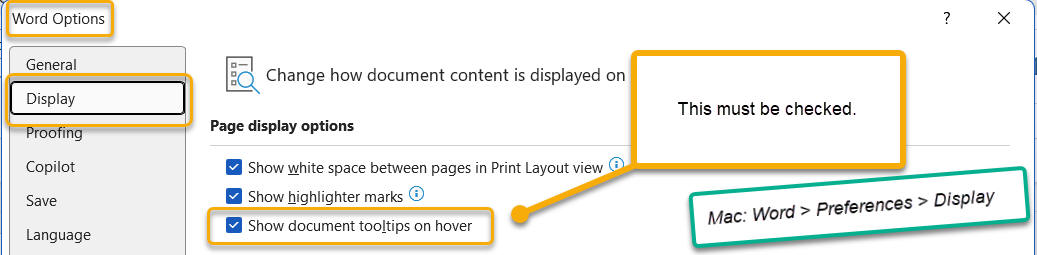
Both can give "tooltips" when the mouse hovers over them.
Both are limited to 255 characters for the tooltip. Lene Fredborg has a paid utility that can allow much more than that with the Hyperlink field.
The Hyperlink field's pop-up includes a nonsensical message about following the non-existent link; the AutoTextList field does not.
With neither field does the pop-up text convert to pdf.
=============================================
(above is a link to Microsoft documentation on this field)
MVP Lene Fredborg's macro that does this, with shading.
=============================================
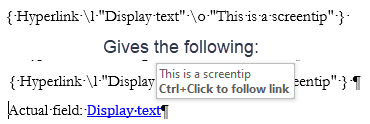
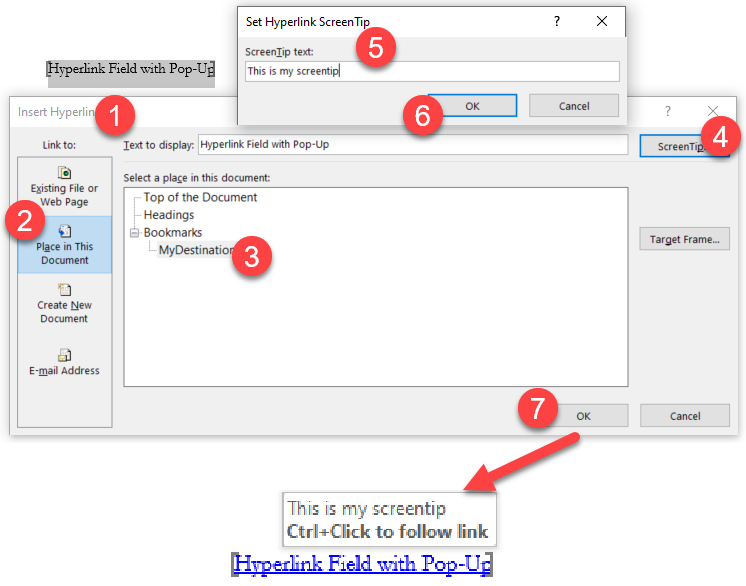
Essentially, when creating the field, the \o switch is added to create the pop-up text. A drawback is that it adds the language Ctrl + click to follow link or Click to follow link. The screenshot above is from my Pop-Up Text Add-in which also looks at the Hyperlink field in the documentation. Note the blue underline indicating the hyperlink and the hint to Ctrl + click to follow link.
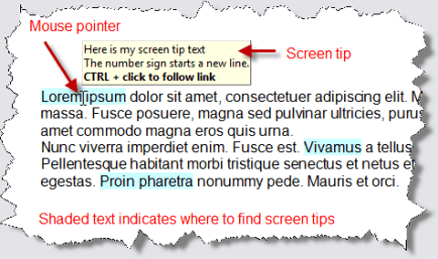
This method is explored further by Word MVP Lene Fredborg on her site. `Add Screentips to Text in Word. She supplies a macro to use to insert such a tip with shading for the underlying text. That macro eliminates the blue underline as well. She also has an Add-In available that provides for tips longer than 255 characters (2040 characters). Here is a screenshot from her page that shows pop-up text produced using her free macro.
Screenshot from Lene Fredborg's page showing results from her macro. - Note: Shading and no blue underline!
She also has a paid Add-In that allows for much more pop-up text.
=============================================
(above is a link to Microsoft documentation on this field)
=============================================
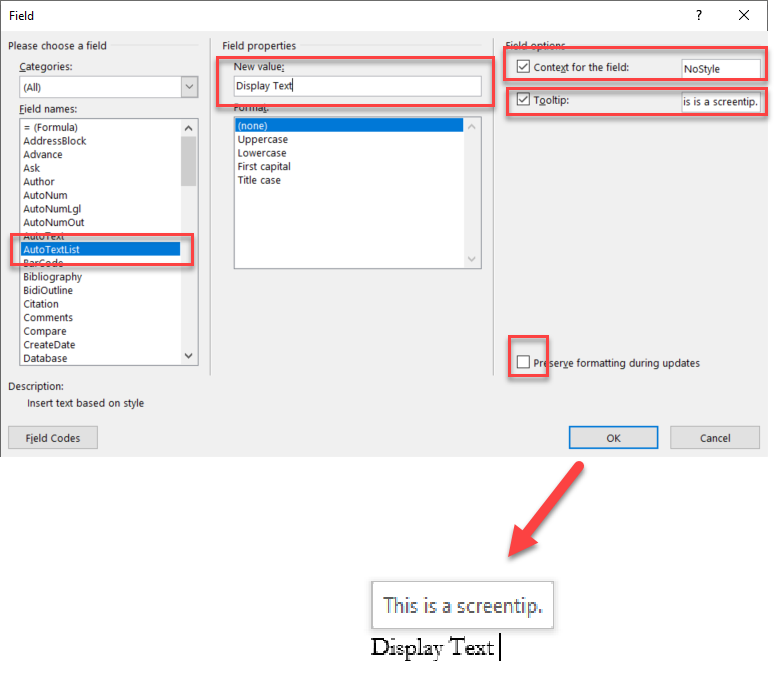
{ AutoTextList “Display text” \s NoStyle \t “This is a screentip” }
The syntax is: { AUTOTEXTLIST "Literal text" \s ["Style name"] \t ["Tip text"] }
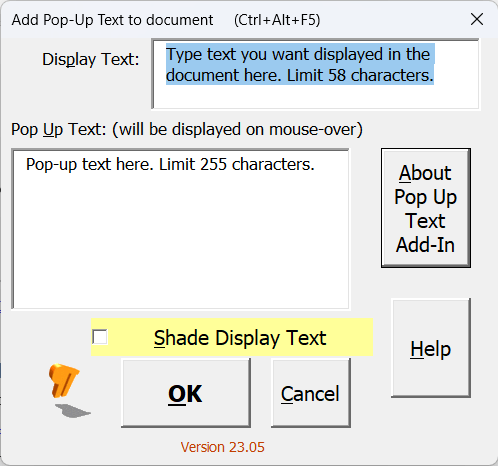
Above documentation is from my free Add-in Pop-Up Text in Microsoft Word.
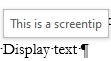
Here is what such a field looks like in action:

This does not include the confusing language about clicking to follow the link. The pop-up text from an AutoTextList field, like that from a Hyperlink field, does not convert to pdf.
You cannot just type fields. The field delimiter braces { } are special characters that must be entered by Word's creation of a field. You can use the word dialog to insert a field or use Ctrl+F9 (Mac: Cmd+F9) to insert them. Using Fields in Microsoft Word
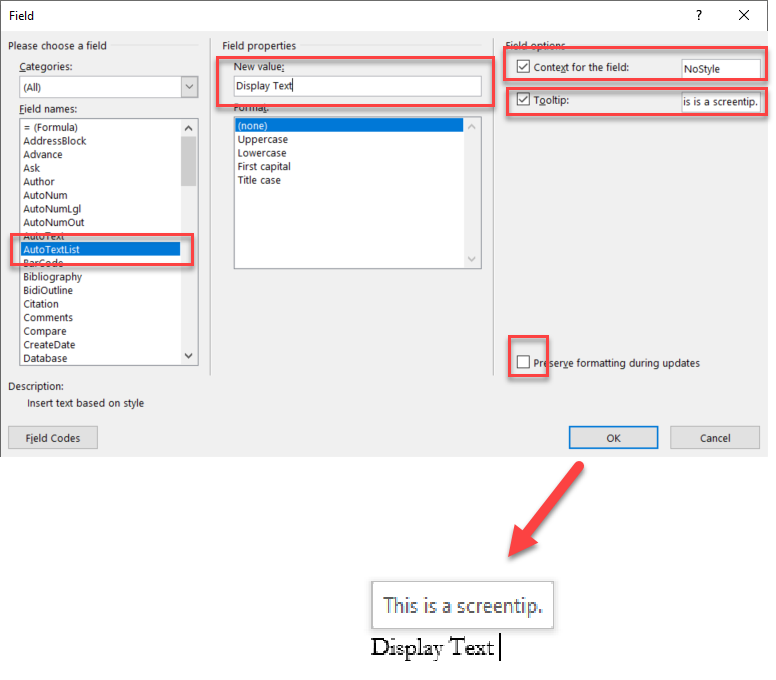
These fields can be inserted using the dialogs rather that typing them.
AutoTextList field
QuickParts > Fields > AutoTextList
Hyperlink field
Ctrl+ K
or Insert > Hyperlink
or Insert > QuickParts > Field > Hyperlink
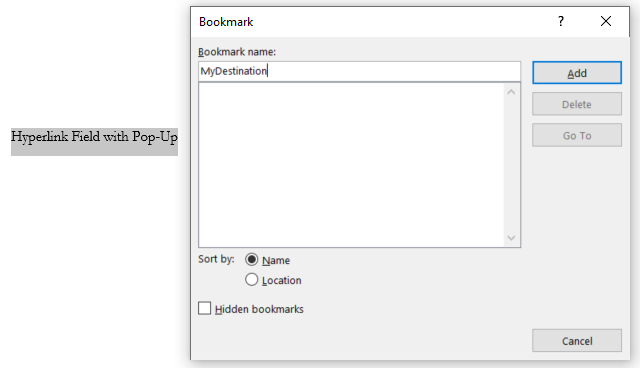
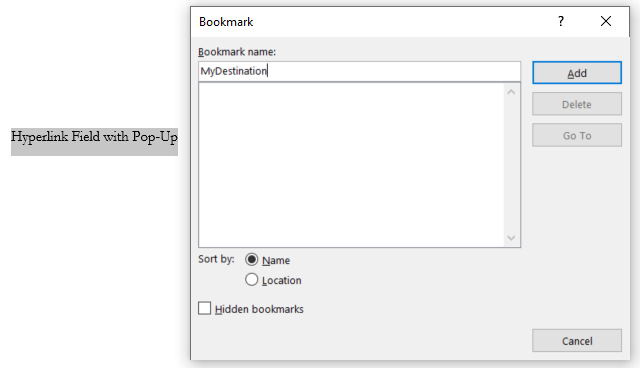
To use the Insert Field dialog to insert this field, you will need a destination for the link.
Otherwise, the dialog will not insert the field. Insert > Bookmark (or Insert > Links > Bookmark).
Again, you would want to create the bookmark before adding the hyperlink.
See my response following about constructing the field manually without the dialog not needing a destination.
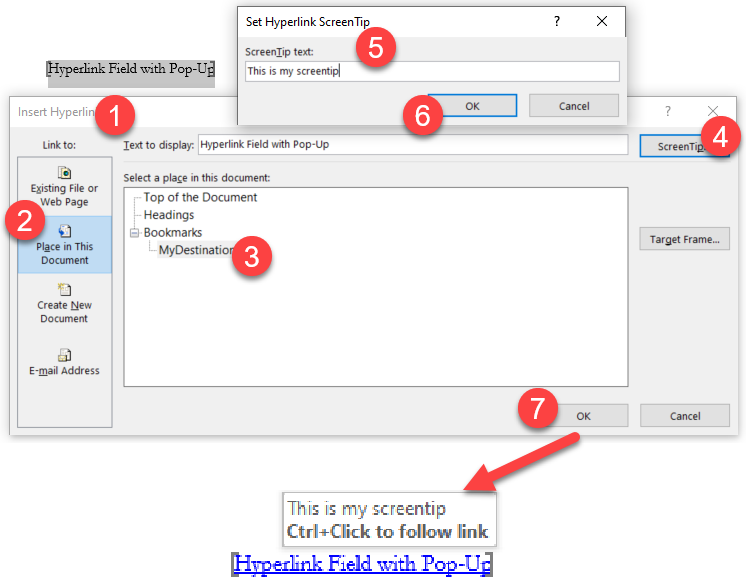
Once you have assigned the bookmark to your display text, you can use the Insert Hyperlink dialog to insert the field.
Windows: Ctrl+K (Mac: Cmd+K)
or Insert > Hyperlink
or Insert > QuickParts > Field > Hyperlink
You
could, then, use direct formatting to remove the blue and underlining
formatting and add shading. (This is done automatically using Lene
Fredborg's macro or my Add-In.)
Note, the above dialogs are from the Windows version. Mac dialogs are similar but require a different path to get the dialogs to pop up.
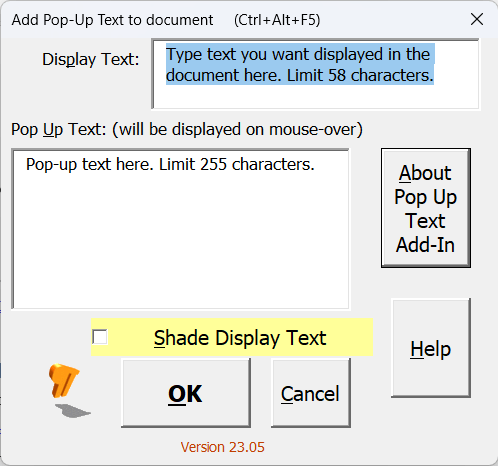
Contrast: Here is the dialog from my free Add-In.
This is reproduced and expanded here. It was originally written as an answer on the Word Super User forum.

.

.
.