

Purpose: The Navigation Pane in Word is useful but does not convert to pdf. Sometimes that would be useful (for navigation, not for editing) in a pdf produced from a Word document.
Scope: All desktop versions of Microsoft Word
Difficulty: Intermediate
Note: This is an Article that was created on the Microsoft Answers site that I saved so it could be edited. Despite appearances, it is not on a Microsoft site, now.
Discussion: Since Word 2010, at least, Word has had a tool called the "Navigation Pane" that is usually docked to the left of the document and displays any paragraph that has an Outline level attached (usually Headings). Clicking on a Heading in the pane takes the user to that part of the document. Users have asked to have that in the pdf versions of the document. This article discusses a limited workaround using the Table of Contents features in Word.
This arose from my attempt to give a workaround to Ashley in this question: Can you use the Navigation Pane in a View-Only shared document? This is not the first time someone has asked something similar, though.
Here is what can be done:
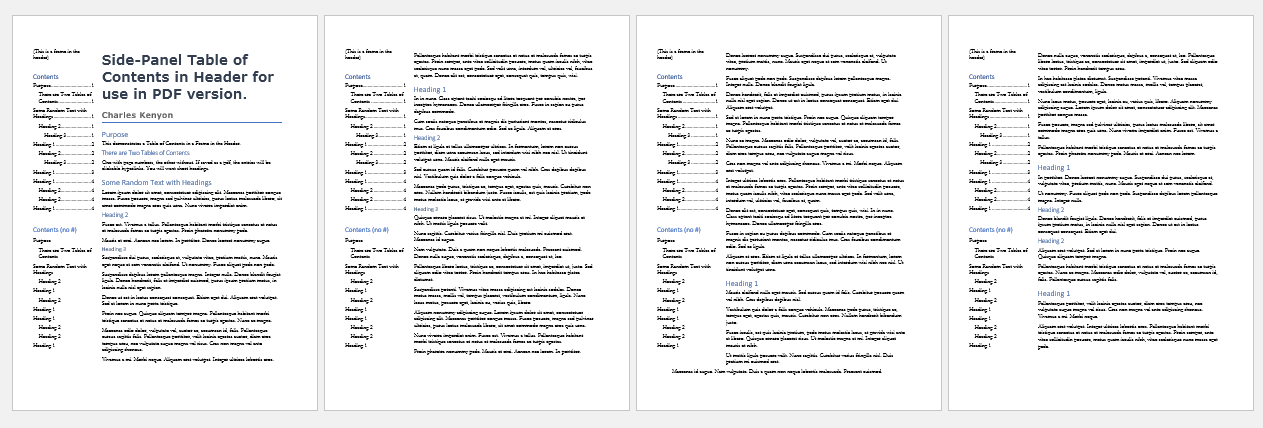
This screenshot shows two Tables of Contents, the first showing three levels with page numbers, the second showing two levels and no page numbers. These have clickable links to the relevant headings in the pdf. The first method could be useful in a printed document.
Before I get into the How, I want to talk about the limitations.
Limitations
In the Word format, this is close to useless. Hyperlinks inside the header or footer of a Word document are really not accessible in a useful way to the user. Instead, insert a Table of Contents at the beginning of the document in the document layer.
This pseudo-Navigation Pane is limited in size to what will fit in that panel on one page. Unlike the real Navigation Pane, you cannot collapse headings to fit more in. Instead, when you create the Table of Contents you need to decide on the number of levels that will be used.
Long headings wrap. They will use up vertical space in this method. To use this method, you really want short headings.
Updating fields in a header is a bit tricky, and a Table of Contents in Word is a Field.
Consider Alternatives - they are simpler and easier
Consider simply using a Table of Contents at the beginning of your document instead of messing around with all this.
A side-panel pseudo-Navigation pane is not all that simple. Inserting a Table of Contents in the body of the document is much easier. Here are links to two pdfs that I've done this way and I think they are fine. There is a link in the footer of each to go back to the TOC.
Consider simply saving as pdf, converting the headings to pdf bookmarks and relying on users to use the pdf bookmarks.
You could even include instructions on how to see and use bookmarks in your document. Again, this is a lot simpler.
Method
(More to be added here, but this should be enough to at least be helpful.)
I used a Frame inside the Header in the document shown in the first screen shot
That Frame was defined in a Paragraph Style named Frame TOC Left. This is in the template under downloads. The method for making such a Frame is in the links under References. The Frame is borderless but could have had a border. It would be possible to use a TextBox instead, which also could be borderless. This method of working within Headers to move text in the body is discussed in the references listed.
Here is a screenshot for the definition of the style:
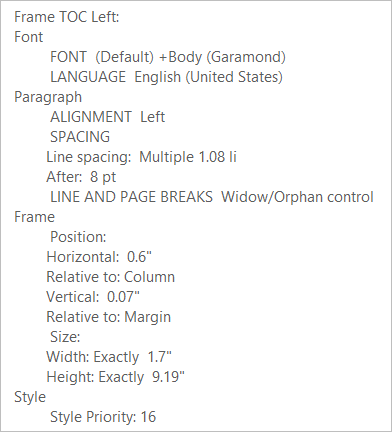
The Frame is set to be essentially as long as the page (or nearly). It is set to have text wrap around it so it will bump text that is in the body of the document.
Problems with Frame as holder and workarounds
A Frame is paragraph-level formatting. The Enter key can take you out of the Frame. If you have the style set to use the same Frame formatting for the next paragraph the two will overlap. The workaround for this is to have at least a space character that is after where you press Enter. This keeps it in the same Frame.
The Table of Contents Gallery and Insert Field dialog do not seem to work inside a Frame, at least not one in a Header. It would not allow addition of a Custom Table of Contents. The workaround for this was to create the Table of Contents in the body of the document and then paste it into the frame. Even the one with page numbers dealt with this fine.
Caveats - Gottchas!
The big one is that this is in the Header.
That means users can't simply click on it when it is open in Word. It is in a different story or layer of the document. When converted to pdf, this distinction disappears.
Each Section of a Word document has three different Headers. A single page of a document can have multiple sections.
These three Headers in each section are not connected to each other although they may be connected (linked) between sections.
Headers are connected between sections by default but this is easily overridden. See Header/Footer Recap in references.
Bullets and paragraphs with hanging indents have those indents ignored because the text is pushed over!
If you put the panel with the TOC on the right side of the page, this problem disappears for those using left-to-right text.
For long documents scrolling becomes really tough, at least in Print Layout view.
Downloads
References:
How to create a table of contents in Microsoft Word by Shauna Kelly
Setting Up Letter Templates - Ribbon by Suzanne Barnhill, MVP
