

Level: All
Platform: Windows
Versions 2016 and later
Note: This is an Article that was created on the Microsoft Answers site that I saved so it could be edited. Despite appearances, it is not on a Microsoft site, now.
If this article will help you, the top of your Word Window looks something like this (without the red arrow):
 You may not even see the Ruler, but you will have three dots on the right next to the close X.
Clicking on those will show the expanded Ribbon. When you click inside the document, the Ribbon disappears again.
Note: this article does not apply to the browser app (shown below)

If your documents are opening by default in the browser and you want to change that setting, see Jay Freedman's answer in this thread.
This likely will only apply during the 2024-2025 winter, but who knows!
If your Ribbon problem is not described above, take a look at:
How did this happen?
In 2022, Microsoft started introducing the "New Experience" / "Visual Refresh Preview" changes to the user interface.
This is discussed in my article: New Experience/Visual Refresh Preview - Microsoft Office - Microsoft 365 - Turning it On and Off
Initiially, it was introduced as an option that users could opt into (or out of) and was off by default.
Eventually, I believe it became the default, but still with an in/out option.
Then it became the default with no way out.
There were a lot of complaints, including from me. (See the other article.)
In November 2024 Microsoft pushed a changed withdrawing most parts of this, without warning or notice. The changes simply were no longer on the computer!
One of the changes that were part of this "New Experience"/"Visual Refresh" setup was a new way to change Ribbon (and QAT) display. During this time the default upon installation was to have the Ribbon minimized and the QAT not displayed at all. There is a dropdown with this setup on the right side of the Ribbon (looks lie a down-arrow or just a wide letter "V". It gives access to this menu:
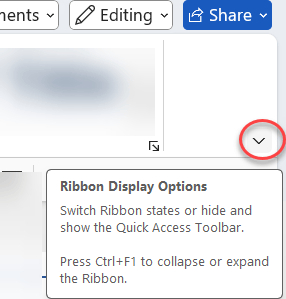
gives you the Show Ribbon dropdown
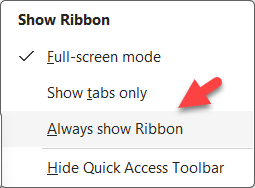
When full-screen mode has been chosen, you see the ribbon shown above.
With the "New Experience"/"Visual Refresh Preview" when the Ribbon is showing you can access the Show Ribbon dropdown.
If Word had full-screen mode active when the change was made to withdraw the interface changes, Word will remain in full-screen mode but there is no access to the control to turn it off. That control disappeared with the interface change.
You can Add it to the QAT.
Adding to the QAT
File Options > Quick Access Toolbar
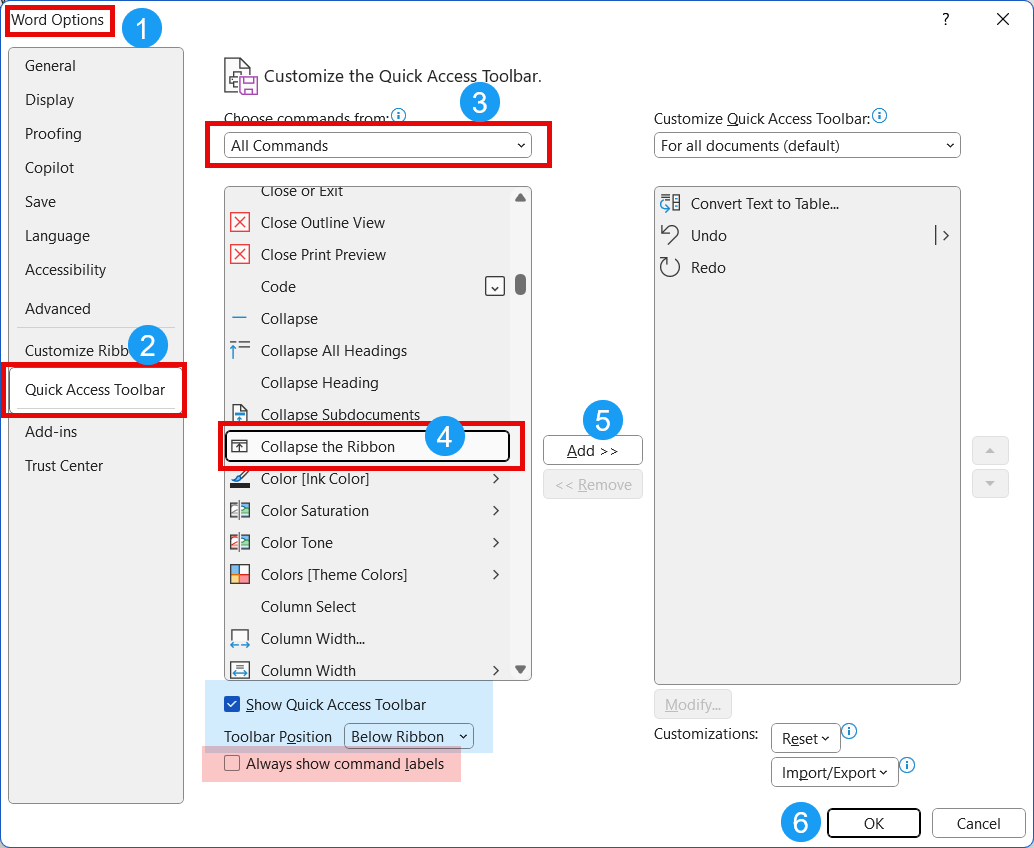
I've created a free, macro-free, Add-In that adds this button  to the QAT. It can be downloaded from my downloads page:
Collapse the Ribbon Control on QAT Add-In
While this could also be added to a custom group on the Ribbon, to me it makes more sense to have it in the QAT.
Another method to fix this, at least as of this writing, requires two Registry edits.
An edit to turn the "New Experience"/"Visual Refresh Preview" back on, followed by turning full-screen mode off in Word, then
An edit to return this back off. Next time Word is open, you will no longer
When we are done, your registry entry will look like this:

Editing the Registry is not difficult but it is vital that before making any edits a backup of the current registry is made.
If you go to your Windows search in the taskbar or your start menu and type RegEdit the registry editor should come up.
Click on it and answer Yes to the "Are you sure" question.
Type or paste into the address bar:
Computer\HKEY_CURRENT_USER\Software\Microsoft\Office\16.0\Common\ExperimentConfigs\ExternalFeatureOverrides\wordIt should show something like the screenshot above. If not, follow the steps below to add "keys" to the registry.
You may not have the word key and would have to add it.
To do that right-click on the ExternalFeatureOverrides folder.
Add a new key (folder) and name it "word".
You probably need to add the key. Right-click on the Word folder and pick New > String Value.
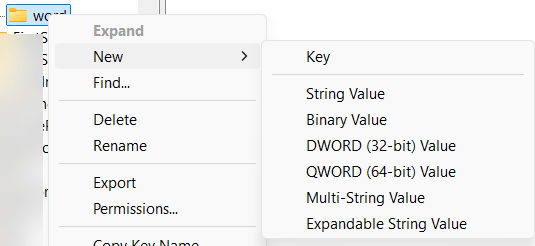
Then add a the name for that String Value
Microsoft.Office.UXPlatform.FluentSVRefreshThen open it and change the value to "true."
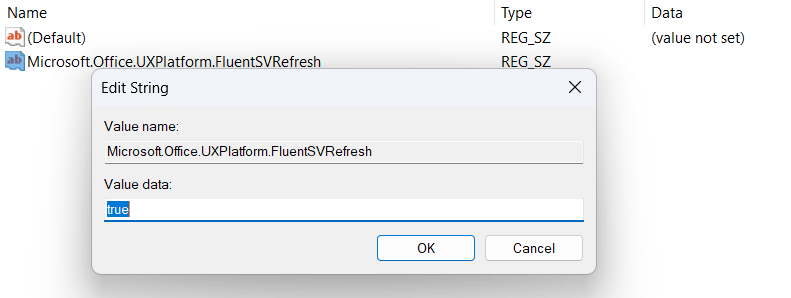
Then click on OK.
You have set Word to show the controls you need.
You can leave the Registry Editor open if you want.
If Word is not closed, close it.
Then open Word.
Click on the three dots to access the ribbon and find the dropdown on the right side to access the dropdown.
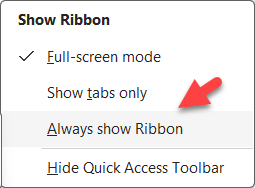
Once you have chosen either "Show tabs only" or "Always show Ribbon" and unchecked "Hide Quick Access Toolbar" close Word.
I STRONGLY recommend unchecking the Hide Quick Access Toolbar if it is checked.
Return to the Registry Editor
Set the value from "true" to "false" unless you truly want the "New Experience"/"Visual Refresh Preview" and exit the Registry Editor.
Please read my article on it, though, before leaving it on. There were good reasons for MS to switch it off.
Close the Registry Editor.
If you did not have those keys before you started, you can, if you want, delete them.
When you reopen Word, you should have control over your Ribbon again. You will not be able to enter Full-screen mode but there are alternatives that come close without disabling your Ribbon controls. See Minimizing Ribbon / AutoHiding Ribbon / Toggling Toolbars Compared.
Here is a temporary link to a zip folder with a ReadMe pdf and two .reg files to turn this on and off.