
Topic: { Fields } in Microsoft Word
Word Versions: Word 97 - Microsoft 365
This does not apply to Word Online, IOS, or Android although most fields work in those versions. It does apply to Word on the Mac and in Windows.
Level: Beginner-Intermediate
Note: This is an Article that was created on the Microsoft Answers site that I saved so it could be edited. Despite appearances, it is not on a Microsoft site, now.
Purpose: This is not a thorough exploration of fields. It is intended to be a short view of what can be done when using fields. There is a list of good references at the bottom of this article.
What is a field?
A field is a method of having dynamic content in Word.
That is, content that changed depending on other information in the document or the user's system.
It is not a Content Control although Content Controls can be included in fields. Fields are an old technology in Word and have changed little over the years.
A few of the more-common examples are:
the Cross-Reference (REF) Field to link to contents elsewhere,
the MERGEFIELD for use in Mail Merge,
the StyleRef Field to repeat text formatted in a given style,
the TOC Field that can be used to insert a Table of Contents or a Table of Figures in a document, and the Index Field to generate an Index
the SEQuence Field for one kind of automatic numbering, and
the IF Field for making conditional text or parts in a document.
the TC Field for a TOC entry not based on a style and the XE Field for an Index Entry
How can I insert a Field in a document?
You cannot simply type the field code! Only Word can create a Word field.
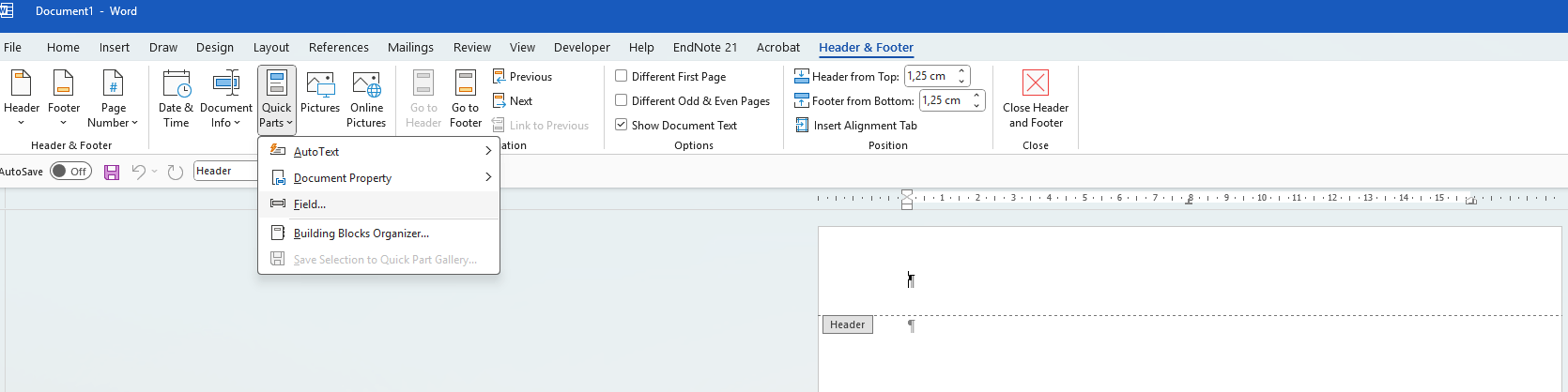
You can call up the Insert Field dialog
There are a number of ways to do this. In menu (older) versions of Word, it is Insert > Field.
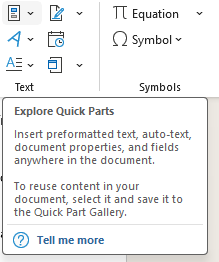
In Ribbon versions on Windows, you can find this under Insert > Quick Parts > Fields.In Ribbon versions on the Mac, I believe it is still Insert > Field.
You can use the keyboard shortcuts to call up this dialog:
Windows version: Alt+I, F
Mac version: Opt+I,F
There are keyboard shortcuts for a few particular fields, shown below.
Fields in Tables
If you are trying to insert a complex field in a Table, there is often no room in the cell to see and edit the field. Create and edit it outside the table structure then paste it back in.
Numerous commands and buttons insert particular fields. You may never see the field itself.
Date
Table of Contents
Cross-Reference
Hyperlink
Index
Although you cannot simply type a field, you can insert a blank field and type the name and switches. (Ctrl+F9 keyboard shortcut)
This keyboard shortcut inserts a matched pair of Field delimiter braces { } into which you can type. This requires that you know the field name and syntax as well as switches. It is the only way to create nested fields.
Once you create a complex field the way you want it, you can select it and save it as AutoText or another Building Block for reuse.
(You could even save as a formatted AutoCorrect entry!)
Where can I find documentation on fields?
Here is the Microsoft documentation on fields: List of Field Codes in Word with Documentation Links
Here is my page on fields: Using Fields in Microsoft Word
(more further on in the page)
How can I see what the coding of a field is in Word?
Here is what a field looks like in a document:
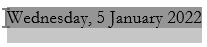
Wednesday, 5 January 2022
It may have shading applied:
 .
.
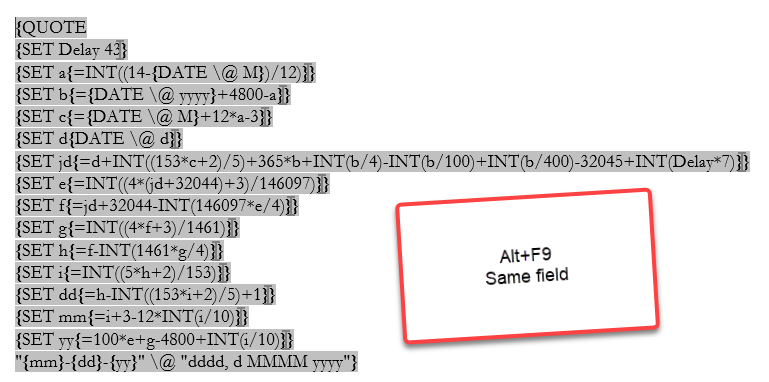
That really gives you no idea of what the field is doing, only what it is displaying. Word does let you look under the hood very easily, though. There are two quick methods:
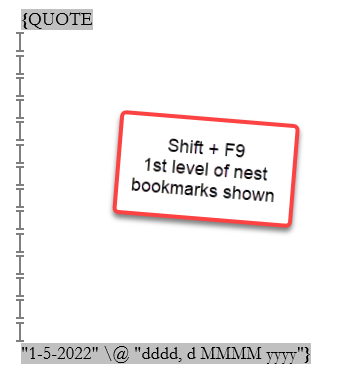
Toggle Field Code Command - Shift+F9 keyboard shortcut
 .
.
 .
.
If you use Shift+F9, pressing F9 will return you to the result and hide the code.
Alt+F9 is a toggle of a setting in Word and applies until you toggle back. (You will continue to see field codes rather than the results until the setting is toggled back to display of results.)
Toggling field code display is the only way to create nested fields (without macros).
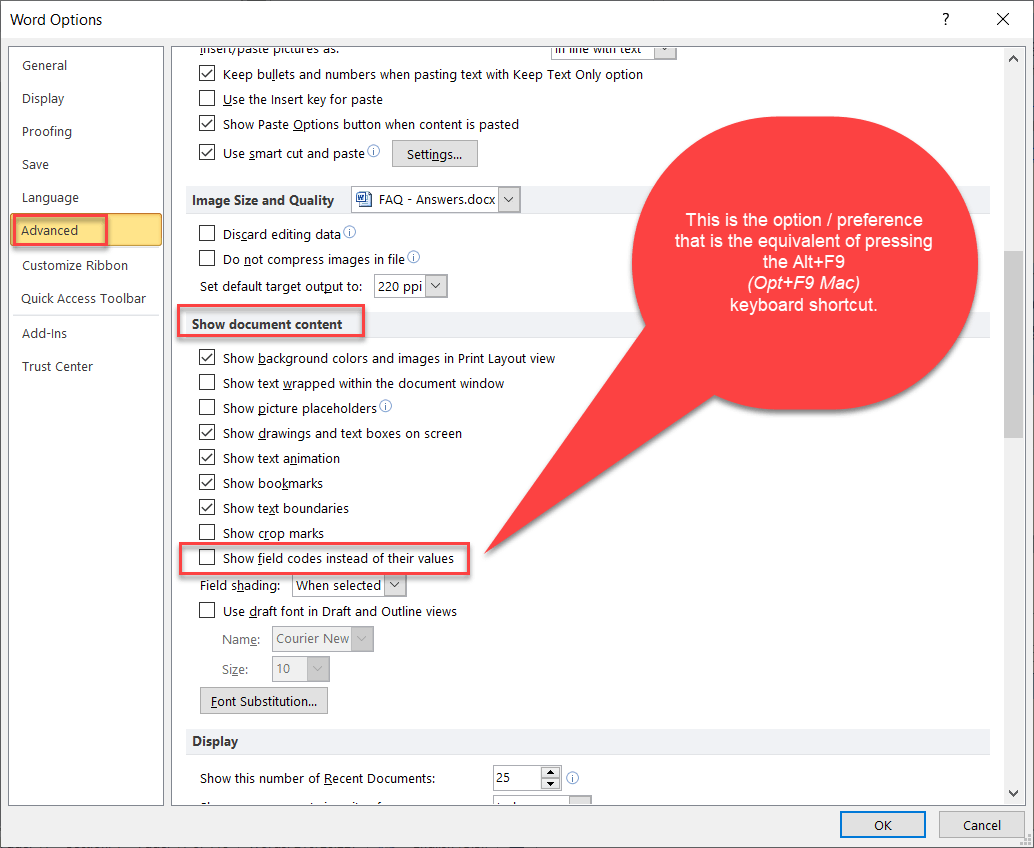
You can also set this in Word Options (Advanced) but the keyboard shortcut is so handy, why bother. If you want to bother, here is the dialog box under File > Options > Advanced:
 .
.
Toggling Field Code Display does not work for TC, TA, XE or Private fields.
Display of those is controlled by display of hidden text. See: Alt-F9 does not work for {PRIVATE} fields.
There is an option in Word to print field codes.
If you have that option checked, field codes will print instead of the field result (text) even if they are not displayed in the document.
If you have the option checked/toggled to display field codes, they will print regardless of the setting for printing field codes.
What are the Function Keys and keyboard shortcuts for manipulation of Fields?
There are a number, and some of the handiest ones do not seem to be documented by Microsoft. They can vary by operating system as well.
With any of the Function Keys, on many computers, it is necessary to add the Fn shift key; i.e., instead of Alt+F9 or Opt+F9, the user needs to press Fn+Alt+F9 or Fn+Opt+F9.
Here is my writing on that on my website: Function Keys and Keyboard Shortcuts that Manipulate Fields. The following table is from that page.
Windows Keys | What | Macintosh Keys |
F9 | Update/Refresh Selected Field | F9 |
Shift+F9 | Display/Hide Field Codes (selected field) * | Shift+F9 |
Alt+F9 | Display/Hide All Field Codes (all fields in document) ** | Opt+F9 |
Ctrl+F9 | Create Empty Field | Cmd+F9 |
Alt+Shift+F9 | Run Macro (MacroButton Field Only) | Opt+Shift+F9 |
Ctrl+Shift+F9 | Unlink Selected Field (delete all field coding and replace with field result) - turn field into text | Cmd+Shift+F9 or Cmd+6 |
F11 | Go to (Select) Next Field | F11 |
Shift+F11 | Go to (Select) Previous Field | Shift+F11 |
Ctrl+F11 | Lock Field (prevent manual or automatic update) | Cmd+F11 |
Ctrl+Shift+F11 | Unlock Field (allow updating) | Cmd+Shift+F11 |
Alt+I, F Alt, I, F **** | Insert Field (Dialog Box) Recent versions Alt, release, I, release, F | Opt+I,F |
Alt+Shift+D | Insert Date Field *** | Ctrl+Shift+D |
Alt+Shift+T | Insert Time Field *** | Ctrl+Shift+T |
Alt+Shift+P | Insert Page Field | Ctrl+Shift+P |
Ctrl+Alt+L | Insert ListNum Field | Cmd+Shift+Opt+L |
* It is possible to have fields inside of fields (nested fields). If this is the case, the Shift+F9 Toggle will not show all the field codes, only the outermost layer. To see all the field codes, use Alt+F9 instead. This is demonstrated above. For more about this, look at Display of Field Codes in my page.
** Alt+F9 is the same as checking / unchecking Field Codes in Tools => Options => View. Unlike a field code toggled using Shift+F9, if you update a field while all field codes are being displayed, the new field result will still be hidden and you will still see the field codes.
*** Probably not the field you want to insert, though. This gives the continuously updating field. See my page on Datefields in Microsoft Word.
**** Recent versions of Word have replaced the Alt+I and Alt+O prefixes for legacy menu shortcuts with Alt,I and Alt,O where the Alt key is released.
If the function keys are not working, chances are good it has to do with your Computer (or another program) intercepting them. See Hijacked Function Keys. Try adding the Fn shift key to the key combination.
See also MVP Lene Fredborg's article: Word Fields – Useful Keyboard Shortcuts – Word Macros and Tips
(end of quoted material)
There is a limit on the depth to which fields can be nested.
I believe that this limit is 20 deep. At least, that is what Paul Edstein (macropod) says about the nesting limit for IF fields. That is you can have one field inside another field inside another field, etc., to a depth of 20 levels. This is almost never needed. Often, the purpose can be accomplished simply by multiple IF fields, not nested.
Some Fields do not show all of their information when toggled using Alt+F9 or Shift+F9.
I know this is the case with the AutoTextList and Hyperlink fields. This is demonstrated for the Hyperlink field in my response here.
You can address this by editing the field using the dialog. That will let you see the display text for the field.
Updating is not automatic! F9 is your friend!
See Some Fields are Updated While Others Are Not
You can, in most instances use the keyboard shortcuts:
Ctrl+A to select all, followed by ...
F9 (or on some computers Fn+F9)
If the fields are in a different "story" than the main body of your text, this will not reach them. The following macro will update all fields in a document.
Sub UpdateAllFields()
' From Greg Maxey 2013-09-30
' Dim rngstory As Word.range, lngJunk As Long, oShp As Shape
Dim oTOC As TableOfContents, oTof As TableOfFigures, oToa As TableOfAuthorities
'
lngJunk = ActiveDocument.Sections(1).Headers(1).range.StoryType
For Each rngstory In ActiveDocument.StoryRanges
'Iterate through all linked stories
Do
On Error Resume Next
rngstory.Fields.Update
Select Case rngstory.StoryType
Case 6, 7, 8, 9, 10, 11
If rngstory.ShapeRange.Count > 0 Then
For Each oShp In rngstory.ShapeRange
If oShp.TextFrame.HasText Then
oShp.TextFrame.TextRange.Fields.Update
End If
Next
End If
Case Else
'Do Nothing
End Select
On Error GoTo -1
'Get next linked story (if any)
Set rngstory = rngstory.NextStoryRange
Loop Until rngstory Is Nothing
For Each oTOC In ActiveDocument.TablesOfContents
oTOC.Update
Next oTOC
For Each oTof In ActiveDocument.TablesOfFigures ' Added by CKK
oTof.Update
Next oTof
' For Each oToa In ActiveDocument.TablesOfAuthorities ' Added by CKK
' oToa.Update
' Next oToa
Next
End Sub
It is also possible to have macros that update only certain fields like AutoText.
Sub AutoTextFieldUpdateAllStory()
' Written by Charles Kyle Kenyon 9 March 2021
' assistance from Jezebel
' All Story Field Updater - AutoText fields
Dim oField As Field
Dim oStory As range
' On Error Resume Next
For Each oStory In ActiveDocument.StoryRanges
' This goes into headers and footers as well as the regular document
Do
For Each oField In oStory.Fields
If oField.Type = wdFieldAutoText Then
oField.Update
End If
Next oField
Set oStory = oStory.NextStoryRange
Loop Until oStory Is Nothing
Next oStory
Set oStory = Nothing
On Error GoTo -1
End Sub
Other references:
Word Fields and Relative Paths to External Files by Paul Edstein (macropod)
Word Fields: Part I | Microsoft Docs by Cindy Meister
General Tips for Dealing with Fields by Lene Fredborg, MVP
Microsoft Word Field Maths Tutorial by Paul Edstein (macropod)
Microsoft Word Date Calculation Tutorial by Paul Edstein (macropod )
Change Word Field Formatting Switch - MergeFormat/CharFormat by Graham Mayor, MVP
Import and export field constructions as text by Graham Mayor, MVP
Inserting nested fields using VBA by Dave Rado
Working With Fields by Faithe Wempen (from her book Word 2016 in Depth)
Insert, Edit, and View Fields in Microsoft Word - Microsoft Documentation
Insert and Format Field Codes - Word Help (says for Word 2010 but for any version beginning with Word 2010)
Format Field Results - Microsoft Documentation
Functions and Formulas You Can Use in a Word Document - Plexico Technologies
(Formula) field - Microsoft Documentation on Functions and Formulas
My entire page/document became a field! When I hide field codes, everything disappears.
Articles on Fields by Allen Wyatt
See far more references under additional resources in my page: Using Fields in Microsoft Word
Additional writing on my site about individual fields and using fields: