

Scope: All desktop versions of Word (Mac and Windows)
Technical Level: Beginner - Intermediate
Note: This is an Article that was created on the Microsoft Answers site that I saved so it could be edited. Despite appearances, it is not on a Microsoft site, now.
Summary:
One way of preventing error marking for special terms, proper nouns, acronyms and code is to mark the text with the language attribute "Do not check spelling or grammar." This article gives macros to create a character style suitable for marking individual words or phrases and a paragraph style suitable for computer code. Setting this prevents spell checking on any computer, not just the author's.
For background on this marking of text, see:
This article shows you how to create a No Proofing character style either manually through the options available in Word or to create such a style using a macro. It also shows how to set a keyboard shortcut for the style. When creating it manually, the commands may look a bit different on the Mac, but the process is the same. The macro will work on either the Mac or the PC.
Background:
This is for words you do not want flagged at all on any computer no matter which language they are in
When you add a flagged word to your dictionary...
That word will no longer show up as flagged in any document on your computer, whether or not you created it.
When you tell Word to Ignore All ...
It will ignore that word throughout the current document... for a while. At some point Word is likely to forget this.
When you tell Word to Hide Spelling Errors in This Document ...
All things that are marked as errors or might be marked in the future will not be displayed as spelling errors on your computer or on any computer that opens the document. You can still explicitly check spelling (i.e. F7) but unless you or someone else does this, they do not show up.
When you mark a word to not check Spelling or Grammar in its proofing language ...
So long as the document is maintained as a Word document, grammar or spelling for the marked word will not show up as an error on any computer.
For more background see Mastering the Spelling Checker by Suzanne Barnhill, MVP
You can manually create styles using the Styles Pane.
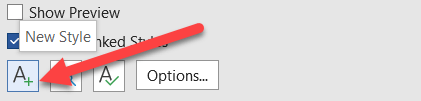
The Button on the bottom left of the Styles Pane is to create a new style.
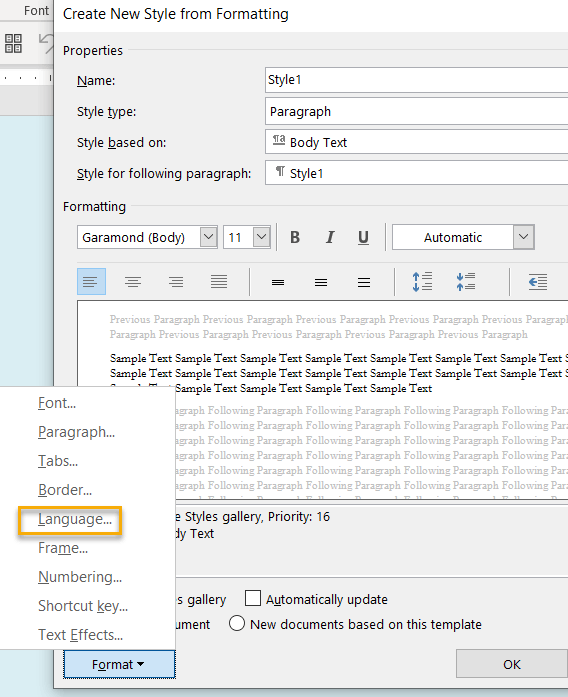
Use the Format button and go to Language.
Check the box for "Do not check spelling or grammar."
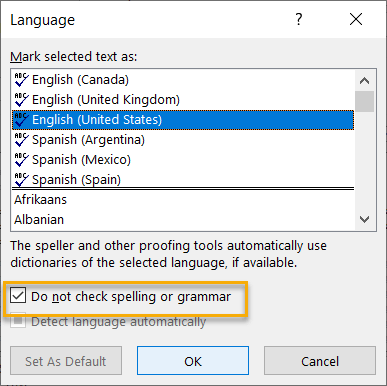
For a character style based on the Default Paragraph Font, select a language other than your default.
Click OK on the Language Box.
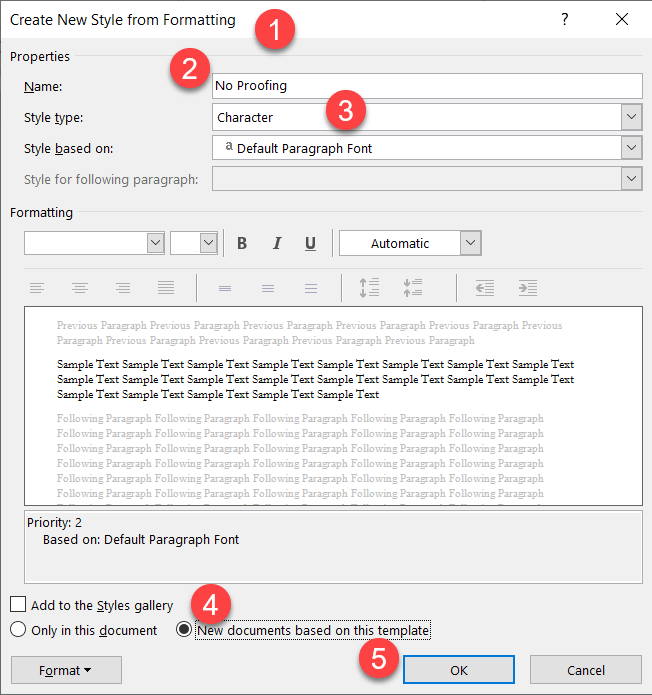
Give your style an appropriate name like "No Proofing" or "No Spell Check." (2 below)
You probably want this to be a Character Style so you can apply it to specific Words or text. (3 below)
If this is a character style, click on OK.
Then right-click on the style and modify it. Go back to language and set it for your basic language. (For character styles, you are better off using a macro (below).)
Check to save to your template and OK back to your document. (4 and 5 below)
If asked when closing Word if you want to save changes to the template, answer "Yes."
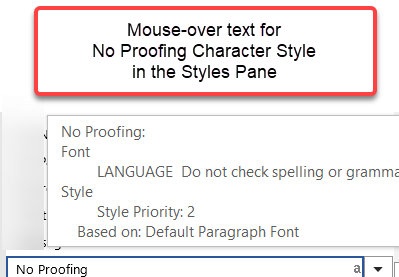
With the Styles Pane displayed on mouse-over, you should see something like this:
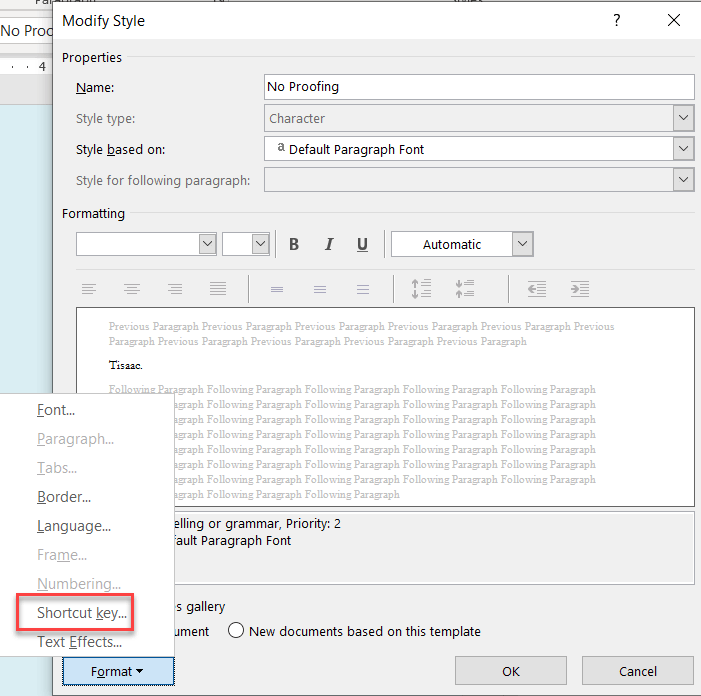
You can apply a keyboard shortcut to your style from the Modify Style dialog using the Format dropdown menu.
If you use a shortcut key to apply a character style, you can use Ctrl+Spacebar to return to the underlying paragraph style's formatting that will check your spelling.
As noted by MVP Suzanne Barnhill, a character style set up using the dialog will not keep this attribute unless a language is set for the style.
If you create the style using a macro, this is not a problem.
Or, you can create the style using a macro.
Macro to creating a Character Style to set language for selection to not check spelling or grammar
One of the simplest methods of setting the no-proofing setting to text is to use a character style with that language setting. Such a style can be assigned to a keyboard shortcut. The character style is based on the underlying paragraph style and font, so the appearance of the text should not change. However, it will override any direct character formatting.
Here is a sample macro that creates a character style in the document called "No Spell Check:"
Sub NoSpellCheckStyle() ' SEE ALSO ASSIGNSHORTCUTNOSPELLCHECK FOLLOWING ' Charles Kenyon ' Creates a character style named "No Spell Check" in the Active Document ' Does NOT apply the style to a selection, simply creates the style ' 12 April 2019 ' Dim stlNoCheck As Style ' On Error GoTo ErrorAlreadyExists Set stlNoCheck = ActiveDocument.Styles.Add(Name:="No Spell Check", Type:=wdStyleTypeCharacter) On Error GoTo -1 With stlNoCheck .Font.Name = "" .NoProofing = True End With GoTo ExitSubErrorAlreadyExists: MsgBox Prompt:="Style 'No Spell Check' already exists", Buttons:=vbInformation, title:="Oops"ExitSub: Set stlNoCheck = NothingEnd Sub
Here is a Macro that assigns the Keyboard shortcut Ctrl+Shift+Alt+N to the No Spell Check style.
Sub AssignShortcutNoSpellCheck()'' Charles Kenyon ---- GOES WITH PREVIOUS MACRO' 2 March 2021' Assigns keyboard shortcut Ctrl+Shift+Alt+N to No Spell Check style' Style must exist' Saves this in the active document' CustomizationContext = ActiveDocument ' Change ActiveDocument to NormalTemplate if style is in Normal Template KeyBindings.Add KeyCode:=BuildKeyCode(wdKeyN, wdKeyControl, _ wdKeyShift, wdKeyAlt), _ KeyCategory:=wdKeyCategoryStyle, _ Command:="No Spell Check"End SubParagraph Style to set language for paragraph to not check spelling or grammar
Here is a temporary link to a document containing such a style named Code. You can use the Organizer to copy it if you wish.
Here is a macro to create a paragraph style named "Code" which has the no proofing attribute as well as changing the font to Courier New and setting for single-spacing. Since it is based on the Normal style, which is linked, it actually makes a linked style. To change that, base it on the Body Text style.
Sub MakeCodeParagraphStyle() ' ' Creates the Paragraph Style "Code" in active documest ' Charles Kenyon 2022-08-11 ' On Error GoTo ErrorAlreadyExists ActiveDocument.Styles.Add Name:="Code", Type:=wdStyleTypeParagraph On Error GoTo -1 With ActiveDocument.Styles("Code") .BaseStyle = "Normal" .AutomaticallyUpdate = False With .Font .Name = "Courier New" End With With .ParagraphFormat .SpaceBefore = 0 .SpaceBeforeAuto = False .SpaceAfter = 8 .SpaceAfterAuto = False .LineSpacingRule = wdLineSpaceSingle .OutlineLevel = wdOutlineLevelBodyText .LineUnitBefore = 0 .LineUnitAfter = 0 End With .NoSpaceBetweenParagraphsOfSameStyle = True .NoProofing = True End With Exit SubErrorAlreadyExists: MsgBox Prompt:="Style 'Code' already exists", Buttons:=vbInformation, Title:="Oops" On Error GoTo -1End SubHere's how to use a macro found in this forum or on another webpage:
For PC macro installation:
For Mac macro installation & usage instructions, see:
See also: Using Styles for Proofing Language Settings and The Styles Pane by Suzanne Barnhill, MVP